Introduction
About lpminimk3
lpminimk3 is a Python package that helps you to control the Novation Launchpad Mini MK3. lpminimk3 communicates with the Launchpad using MIDI over USB. It uses the MIDI implementation for the device (specified in the device’s programmer’s reference) to control LEDs and access Launchpad Mini MK3’s various features.
Goals
Intuitive, object-oriented design
Convenient for use in script and shell
Access to all (or most) of the Launchpad Mini MK3 MIDI features
Hardware
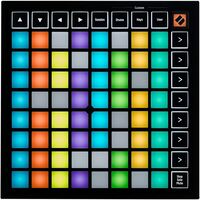
The Launchpad is equipped with a variety of components, the first three being accessible from lpminimk3:
64 Pads
16 Buttons
81 RGB LEDs
USB-C Socket
Kensington MiniSaver Slot
Features
Full LED control
Text rendering
Data-driven bitmap rendering
Data-driven movie rendering
Console rendering
Button event handling
Control over a network via websockets
Direct control of Launchpad using raw MIDI
Installation
To install the most stable version of this package, run:
$ pip install lpminimk3
To test the installation, connect your Launchpad to your computer and run:
$ python -m lpminimk3.examples.hello
Getting Started
Make sure your Launchpad is connected to the computer.
In script
Control LEDs individually:
"""Display a random array of colors for 5 seconds.
"""

from lpminimk3 import Mode, find_launchpads
import random
import time

lp = find_launchpads()[0]  # Get the first available launchpad
lp.open()  # Open device for reading and writing on MIDI interface (by default)

lp.mode = Mode.PROG  # Switch to the programmer mode

for led in lp.panel.led_range():  # Loop through all LEDs
    led.color = random.randint(1, 127)  # Set LED to a random color

time.sleep(5)  # Keep LEDs on for a while

for led in lp.panel.led_range():
    del led.color  # Turn off LED
Render text on Launchpad’s surface:
"""Scroll text from right to left across the Launchpad's surface.
"""

from lpminimk3 import Mode, find_launchpads
from lpminimk3.graphics import Text

lp = find_launchpads()[0]  # Get the first available launchpad
lp.open()  # Open device for reading and writing on MIDI interface (by default)

lp.mode = Mode.PROG  # Switch to the programmer mode

print('Watch text scroll across the Launchpad\'s surface.\n'
      'Press Ctrl+C to quit.\n')

lp.grid.render(Text(' Hello, world!').scroll())  # Scroll text indefinitely
See more examples here.
In shell
Start by finding a connected device and opening the device for reading and writing:
$ python
>>> import lpminimk3
>>> lp = lpminimk3.find_launchpads()[0]
>>> lp.open()
Query the device to ensure we can read and write to it:
>>> lp.device_inquiry() # Query device
Switch to programmer mode to start manipulating button LEDs:
>>> lp.mode = 'prog'  # Switch to programmer mode
>>> lp.grid.led('0x0').color = 10  # Set color to yellow (Valid values: 0 - 127)
>>> lp.grid.led(1,0).color = lpminimk3.colors.ColorPalette.Red.SHADE_1  # Set from palette
>>> lp.panel.led('logo').color = 'violet'  # Set logo LED color to violet
>>> lp.panel.led('drums').color = 'green2'  # Set 'Drums' LED color to second shade of green
>>> lp.panel.led('stop').color = 'w1'  # Set 'Stop/Solo/Mute' LED color to first shade of white
>>> lp.panel.led('mute').color = 'o3'  # Set 'Stop/Solo/Mute' LED color to third shade of orange
>>> lp.panel.led('mute').color = 'r0'  # Invalid but okay, will default to 'r1'
>>> lp.panel.led('scene_launch_1').color = '#ff0000'  # Set color to red using hex
>>> lp.panel.led('scene_launch_2').color = (0, 0, 255)  # Set color to blue using rgb
>>> lp.panel.led('mute').color = 0  # Turn off LED
>>> lp.panel.led('logo').reset()  # Another way to turn off LED
>>> del lp.panel.led('stop').color  # Another way to turn off LED
Note in the above snippet that lp.grid only contains the grid buttons
(i.e. the faceless white buttons) and lp.panel contains all buttons
(including the logo LED at the top right corner).
Wait for and respond to button presses and releases:
>>> ev = lp.panel.buttons().poll_for_event()  # Block until any button is pressed/released
>>> ev
ButtonEvent(button='7x5', type='press', deltatime=0.0)
Or only button releases instead:
>>> ev = lp.panel.buttons().poll_for_event(type='release')  # Block until released
>>> ev
ButtonEvent(button='up', type='release', deltatime=0.0)
Pass button names as arguments to wait for specific button events:
>>> lp.panel.buttons('up', '0x0', 'stop').poll_for_event()
Render A on Launchpad’s surface:
>>> from lpminimk3.graphics import Text
>>> lp.grid.render(Text('A'))
Print A in console:
>>> Text('A').print()
  XX
 XXXX
XX  XX
XX  XX
XXXXXX
XX  XX
XX  XX
Scroll Hello, world! on Launchpad’s surface once:
>>> lp.grid.render(Text(' Hello, world!').scroll(count=1))